Simple 4-Step Process
Responding to a violation notice is quick and easy through your community portal
Check Your Violation
Log into your portal to view the violation details and any supporting photos or documentation.
Navigate to Discussions
Go to the 'Discussions' tab in your account portal to find the violation thread.
Post Your Response
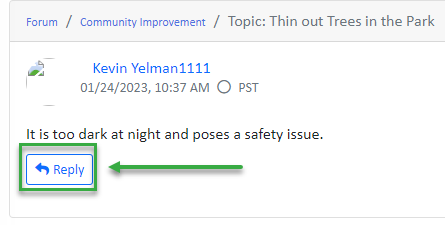
Click the 'Reply' button to explain your actions, provide evidence, or request an extension.
Get Email Updates
Once you reply, all future responses will be sent to your email - no need to keep logging in.
Stay in the Loop via Email
Once you post your initial response in the Discussion tab, all future replies and updates are automatically sent to your email. You'll always have a convenient "Post a Reply" button in each email, so you can continue the conversation without logging into the portal.
No Repeated Logins
Reply directly from your email inbox
Instant Notifications
Get updates as soon as responses arrive
Full Thread History
View entire conversation in one place
Tips for an Effective Response
Best practices for resolving violations quickly
Be Clear and Specific
Explain what actions you've taken or plan to take to resolve the violation.
Attach Photos
If you've corrected the issue, upload photos as proof of compliance.
Request Extensions
If you need more time, explain why and propose a realistic completion date.
Stay Professional
Keep communications respectful and focused on resolving the matter.